Search

SSV Outside

Permissions and Page Access

If you're having trouble logging into the new site at https://www.avc.edu/user, or are unable to edit your Department pages, please submit a ticket using the Website Support form.

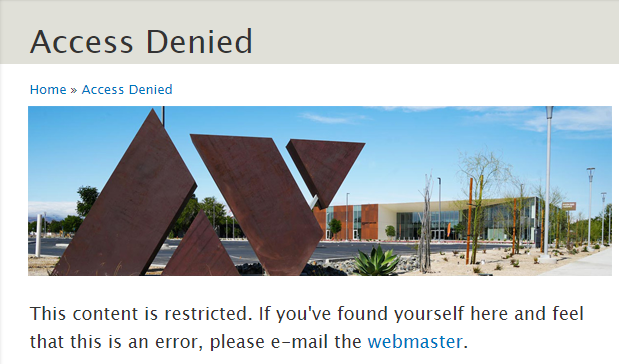
If you receive the Access Denied message below while trying to Edit a page, you do not have permission to edit. Please submit a Website Support Ticket if you believe this to be an error.


Image
Access Denied

Updated URLs

As a result of updating the website's main navigation, most URLs have changed. 

Important: Your previous links WILL still work on the new site.

URL redirects have been put in place to help prevent "page not found" errors, however if you run into any "page not found" errors while on the new website, please report them using the Website Support Ticket form.

If your page URL has changed and you'd prefer to have it shortened, please submit your request using the Website Support Ticket form.

Editing a Basic Page

Add Hero Banner (Optional)

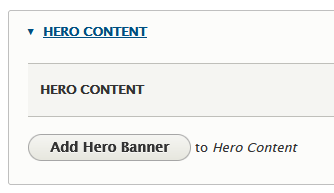
By default, NEW pages will NOT contain a hero banner image at the top of the page. To add an image, click the "Add Hero Banner" button.
 

Image
Add Hero Content


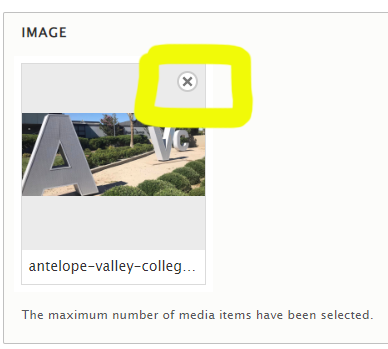
After clicking the Add Hero Banner button, the default hero banner image will automatically be assigned to your page. To add a custom image (1440px wide by 650px tall)*, click the "x" button (shown below), locate your custom image and insert.

*Important Note: If you've used Custom hero banners in the past and would like them on the new website, they will need to be updated to the larger 1440x650px size to avoid stretching and appearing blurry. Please submit a Website Support Ticket if you're needing assistance.
 

Image
Add New Hero


Body Content

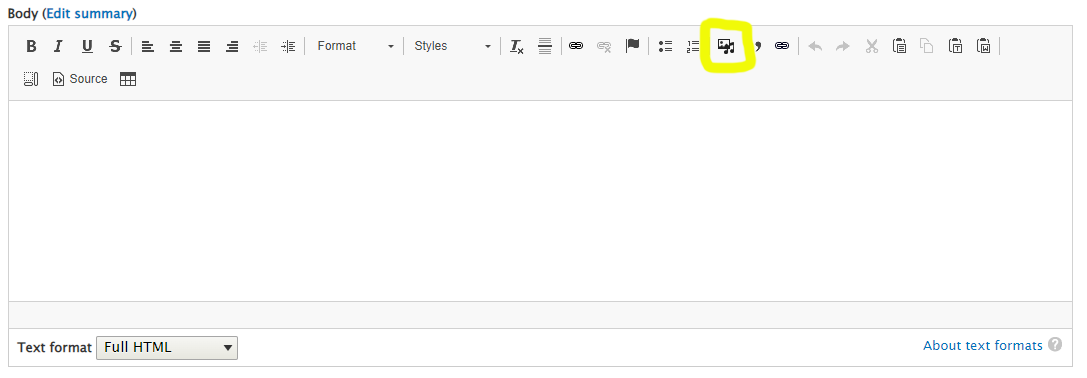
The Body content editor has remained relatively unchanged. The biggest update is to the "Image Upload" tool (highlighted below):


Image
Highlighted File Upload


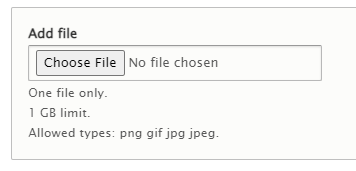
To add an image to your page, click on the "Image Upload" icon (highlighted above). A new window will pop up. Click the "Choose File" button to locate your image.
 

Image
Choose File


After selecting your image, you'll be prompted to add the Alt tag information. Give your image a good description. Do NOT add images that contain a large amount of text (this helps ensure your images are ADA compliant). Insert your image into the page.

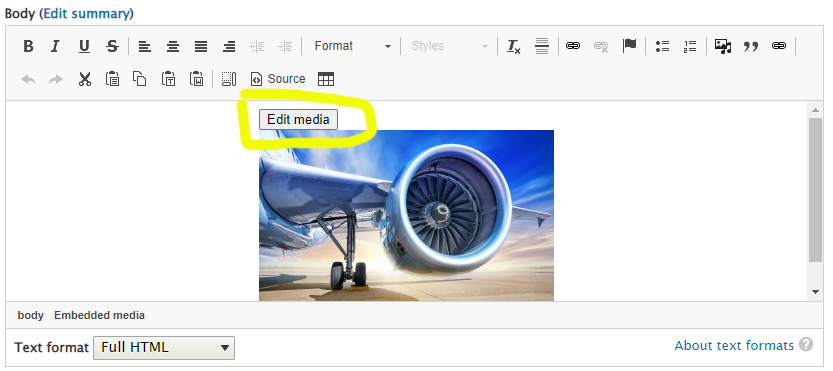
Optional: Click on the "Edit Media" button to adjust your image's size and positioning, if needed.


Image
Edit Media


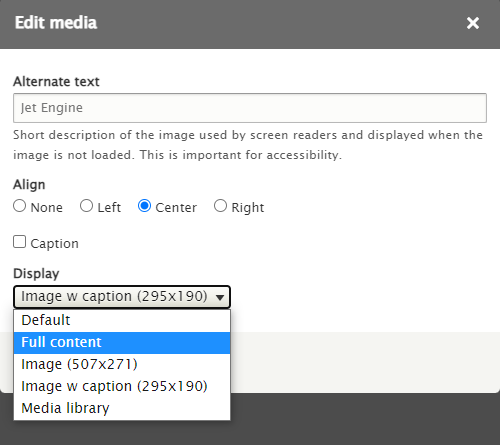
Generally, the "Full Content" sizing option is best for most images (this option will scale your image to its full width and will automatically resize when viewed on a phone).


Image
Full content


Save your page as "Published" to push your updates live, or save as "Draft" to notify your Department managers that pending edits need review.

New Page Building Tools

Content vs. Full Width Content options

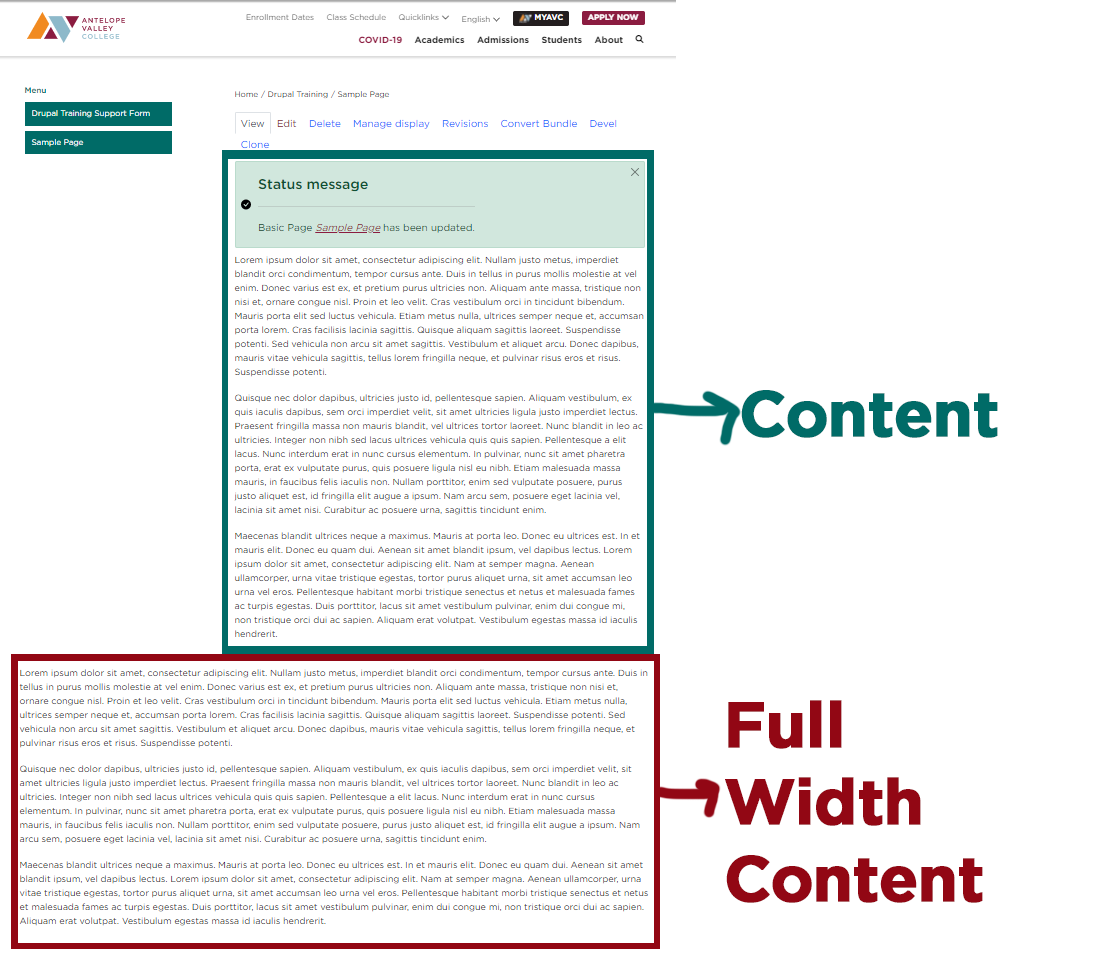
Department pages are now divided into 2 sections: "Content" and "Full Width Content."


Image
Content Block


Any text, images or new components placed in the "Content" area of your page will align to the right of your Department page links.

Any text, images or new components placed in the "Full Width Content" area of your page will appear below your department links and below the "Content" area.

Note: The "Right Column" option is no longer available. If any of your Department pages contained content in the Right Column, it has been moved to the Bottom of your page.

New Page Building Tools (Add-Ons/Components)

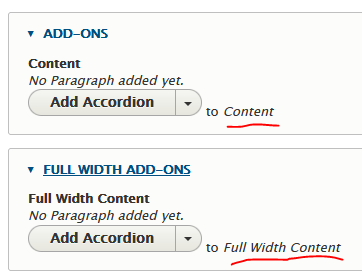
The first step to adding a new component to your page is deciding whether to place it in the "Content" or "Full Width Content" area. Use the drop down menus to make your selection.

Image
Add-On Options


Important: There are a number of Components listed in the "Add-Ons (Content)" and "Full Width Add-Ons (Full Width Content)" dropdown menus, but the Components listed below are your best options for enhancing your Department pages:

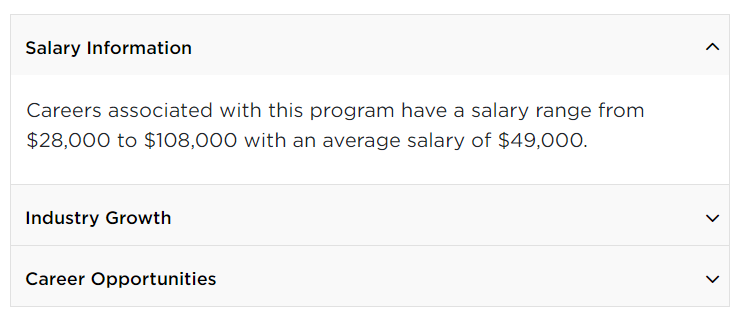
Add Accordion

  • Add a "Title" (optional) to appear above your Accordion items (ex: FAQs)
  • Add an "Accordion Title" for each accordion item (ex: Question)
  • Add the "Accordion Body" copy for each accordion item (ex: Answer)
  • Add additional Accordion items as needed
  • Optional: Open First Accordion Item on page load (checkbox)
Image
Accordion

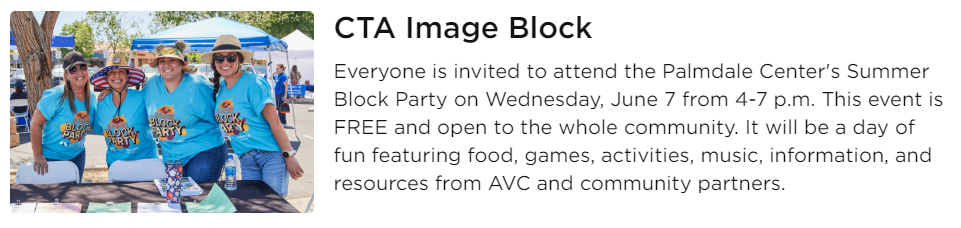
Add CTA Image Block

  • Add a "Title" (Required)
  • Add "Body" copy (Required)
  • Add an Image (Required)
Image
CTA Image

Add CTA Image Block with Captions

  • Add a "Title" and "Subtitle" to appear above your image blocks (optional)
  • Add an Image, Title, Subtitle, URL (Link) and Link Text (button) for each image block
  • Important: 3 images are required for this component
Image
CTA w/ Captions

Add Full Width Callout

  • Add a "Title" and "Subtitle" to appear on top of your image (Required)
  • Add an image (Required)
  • Add a URL (link) and Link Text (button) (Required)
Image
Full Width Callout Example

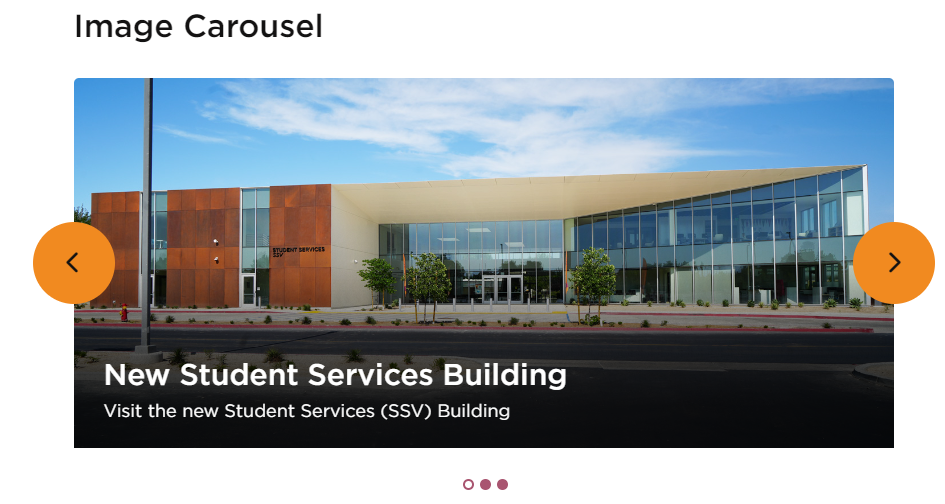
Add Image Carousel

  • Add a "Title" to appear above your image carousel (optional)
  • Add a "Title" to appear on top of your image (optional)
  • Add a "Caption" to appear on top of your image (optional)
  • Add an Image (Required)
  • Add additional images by clicking the "Add Image Carousel Item" button
  • *Note: For best results, use images that have the same height and width dimensions
Image
Image Carousel

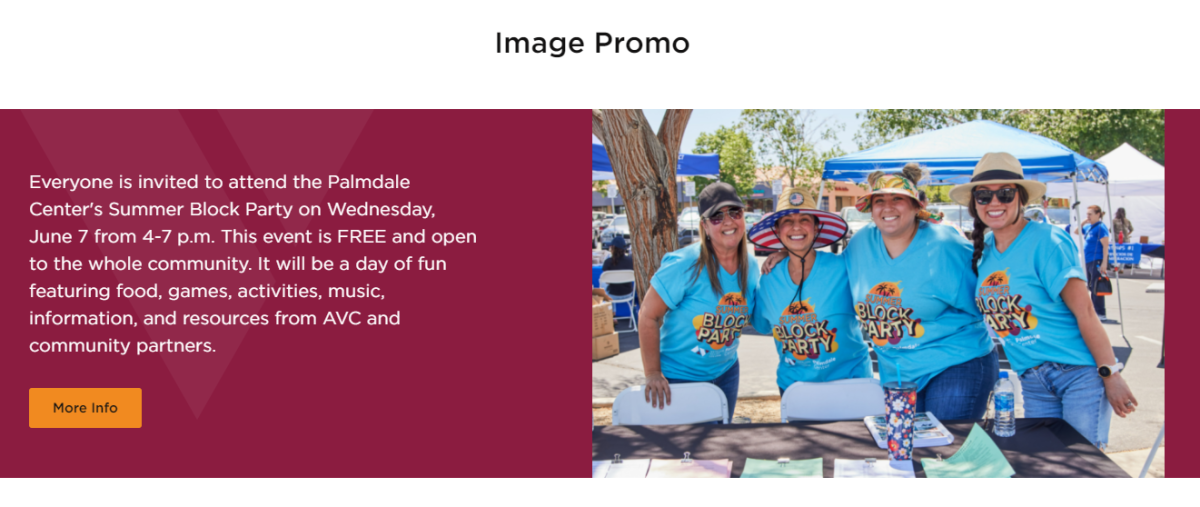
Add Image Promo

  • Add a Title to appear above your Promotion (optional)
  • Add a Subtitle and Body copy (Required)
  • Add a URL (link) and Link Text (button) (Required)
  • Add an image (Required)
  • Choose the image alignment (Right or Left) and the Background Color (Green, Red, Brown, or None)
Image
Image Promo

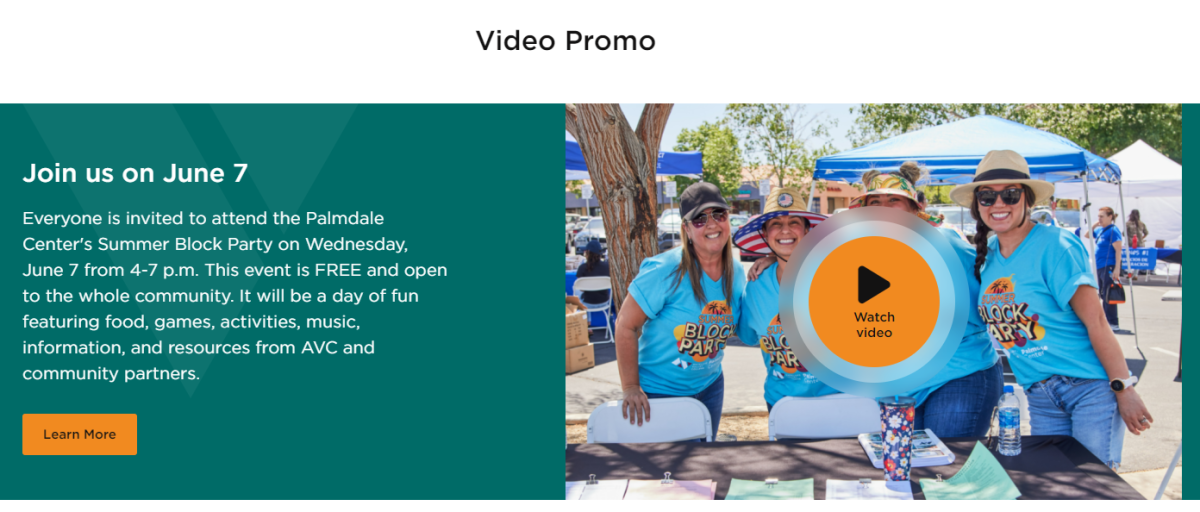
Add Video Promo

  • Add a Title to appear above your Video Promo (optional)
  • Add a Subtitle and Body copy (Required)
  • Add a URL (link) and Link Text (button) (Required)
  • Add a Video (you'll need the link from YouTube) (Required)
  • Add a Video Thumbnail Image (optional - replaces YouTube's default preview image)
  • Note: Your Video will play in a popup window
Image
Video Promo

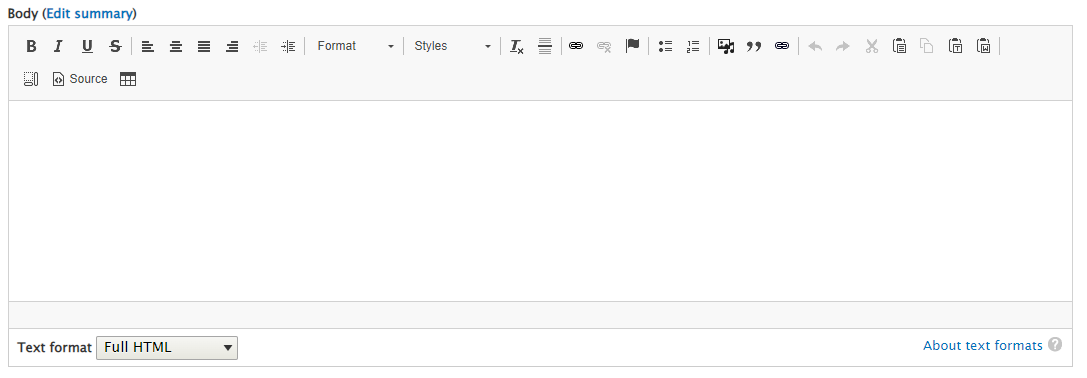
Add WYSIWYG

  • Update the Body copy like normal
Image
Body Content

Have Questions or Need Support?

Please submit a Website Support Ticket.