
Microsoft Teams Phone Resource Page
Antelope Valley College is modernizing campus communications by transitioning from the current Mitel telephone system to the Microsoft Teams Phone System. This resource page provides faculty and staff with key project information, training details, support resources, and answers to common questions as the college prepares for the official go-live date on September 8, 2026.
Why AVC Is Moving to Microsoft Teams Phone
The Mitel phone system has supported the college for many years, but communications technology has evolved. Moving to Microsoft Teams Phone will help AVC reduce dependency on aging infrastructure while improving reliability, collaboration, and long-term sustainability.
- Integration with Microsoft Teams and Microsoft 365 tools employees already use.
- Ability to make and receive calls from computers, mobile devices, and supported desk phones.
- Improved flexibility for hybrid and mobile work.
- Enhanced voicemail, call history, call forwarding, and call management features.
- Simplified collaboration through one communication platform for calls, chats, and meetings.
- Increased reliability and a more sustainable long-term phone service model.
Need help with Microsoft Teams Phone?
If you need additional assistance, you can reach us by:
- Phone: 661-722-6300 (ext. 6535)
- Email: help@avc.edu
When submitting a ticket via email, please include "Teams Phone Assistance" in the subject line along with a brief description of your issue (e.g., your extension, building/room, and what you need help with). This helps us route your request to the right team quickly.
Also, see FAQs and on-demand training materials below.
Implementation Timeline
| Timeframe | Milestone |
|---|---|
| September 8, 2026 | Official go-live date for Microsoft Teams Phone. |
| After Go-Live | Continued support, assistance, and system optimization. |
Training and Support
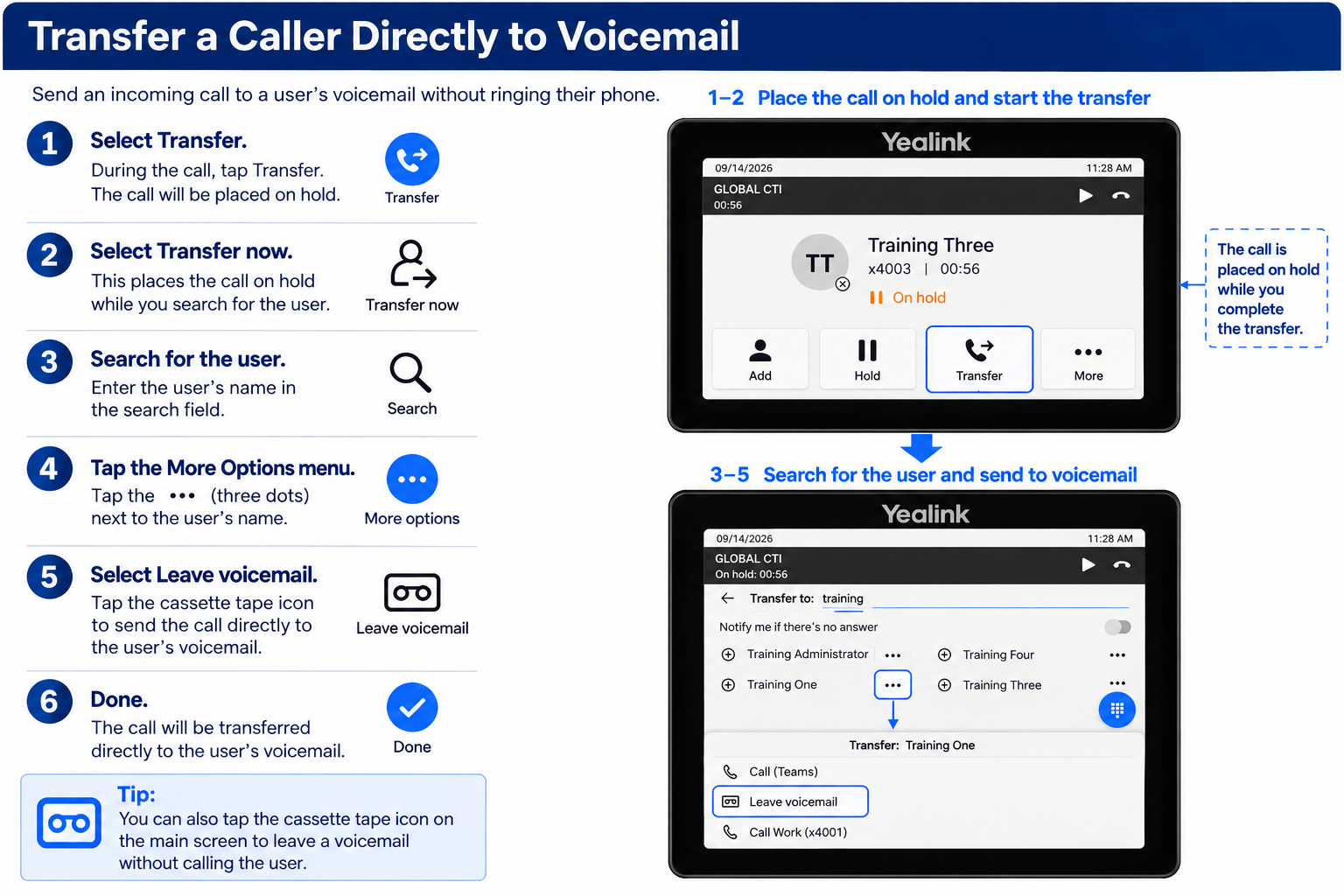
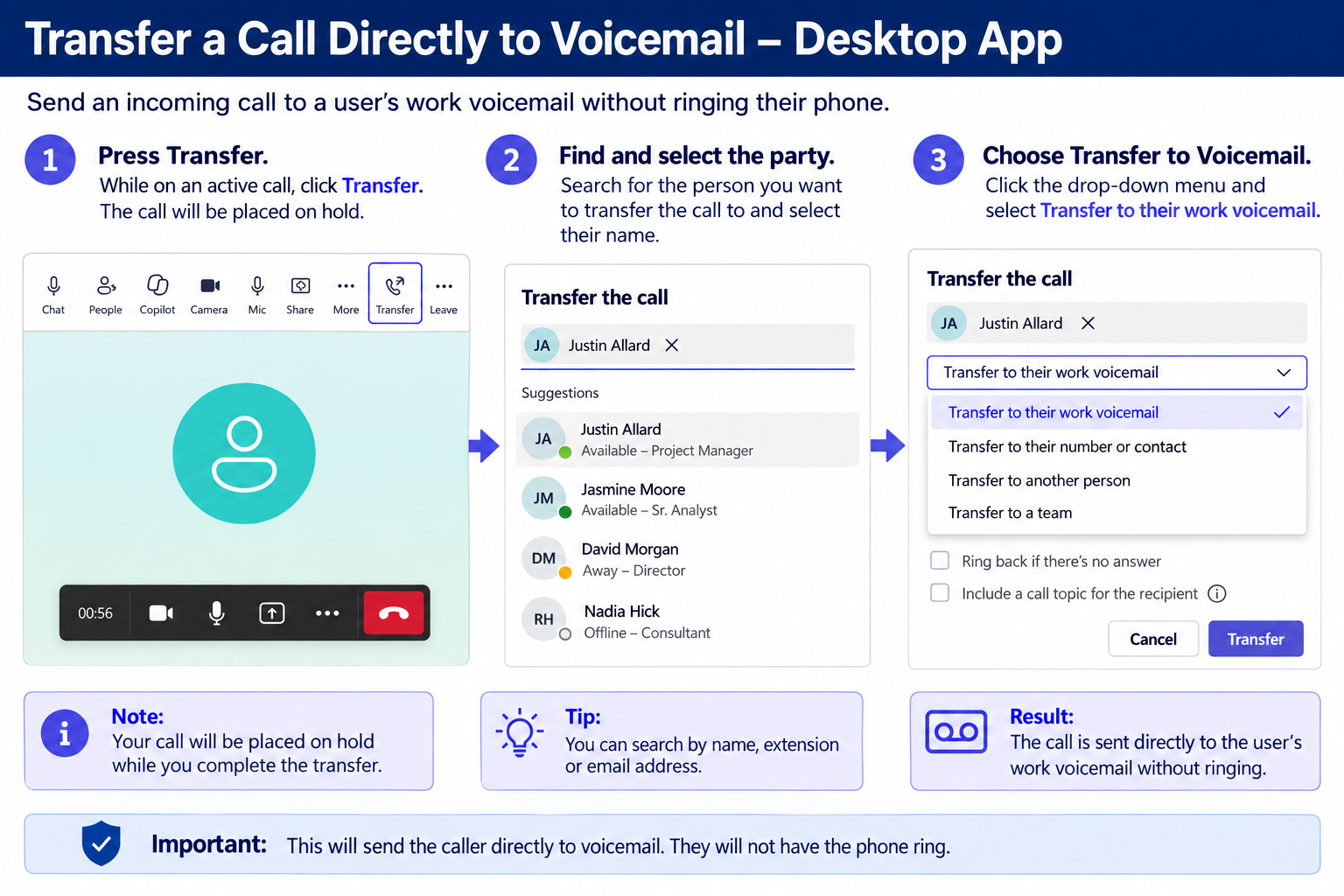
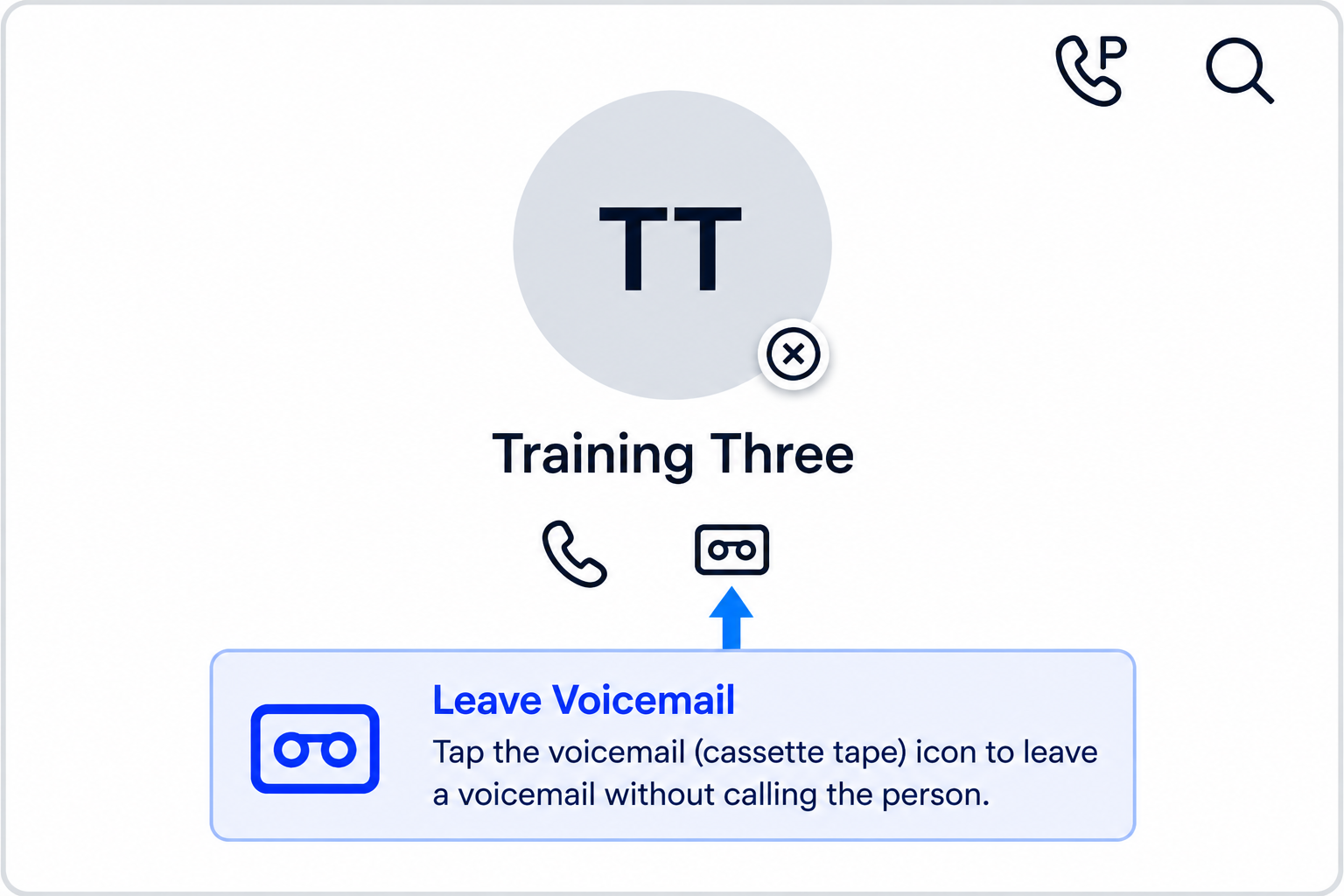
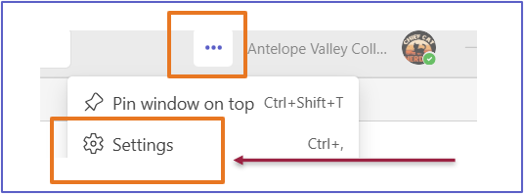
Training opportunities will be available throughout August to help employees become comfortable with the new phone system before go-live. Sessions will introduce the Teams Phone interface and demonstrate common tasks such as placing and receiving calls, managing voicemail, transferring calls, and adjusting call settings.
- Recorded training videos for on-demand review
- Frequently Asked Questions
- Dedicated transition support during and after go-live
Recorded Training Videos
Recent Live Training Session
Katherine Enna from Global CTI provides an overview of the new Microsoft Teams Phone system.
What Employees Can Do with Teams Phone
- Make and receive work calls directly in Microsoft Teams.
- Use call history and voicemail from within Teams.
- Transfer calls, including consultative transfers when needed.
- Set call forwarding and answering rules.
- Manage voicemail greetings and access voicemail transcriptions where available.
- Stay connected from a campus workstation, mobile device, or supported desk phone.
What to Expect
Over the coming weeks, Information Technology Services will share additional communications about training schedules, department migration activities, equipment information, and support options. Employees are encouraged to review these updates and attend training before the September 8 go-live date.
Frequently Asked Questions
This FAQ is designed to help faculty, staff, student workers, and department personnel understand and use Microsoft Teams Phone and the Yealink MP56 Teams handset.